Scraping PDFs With Python: From Link Discovery to Extracted Tables

Web Data Collection Specialist
TL;DR:
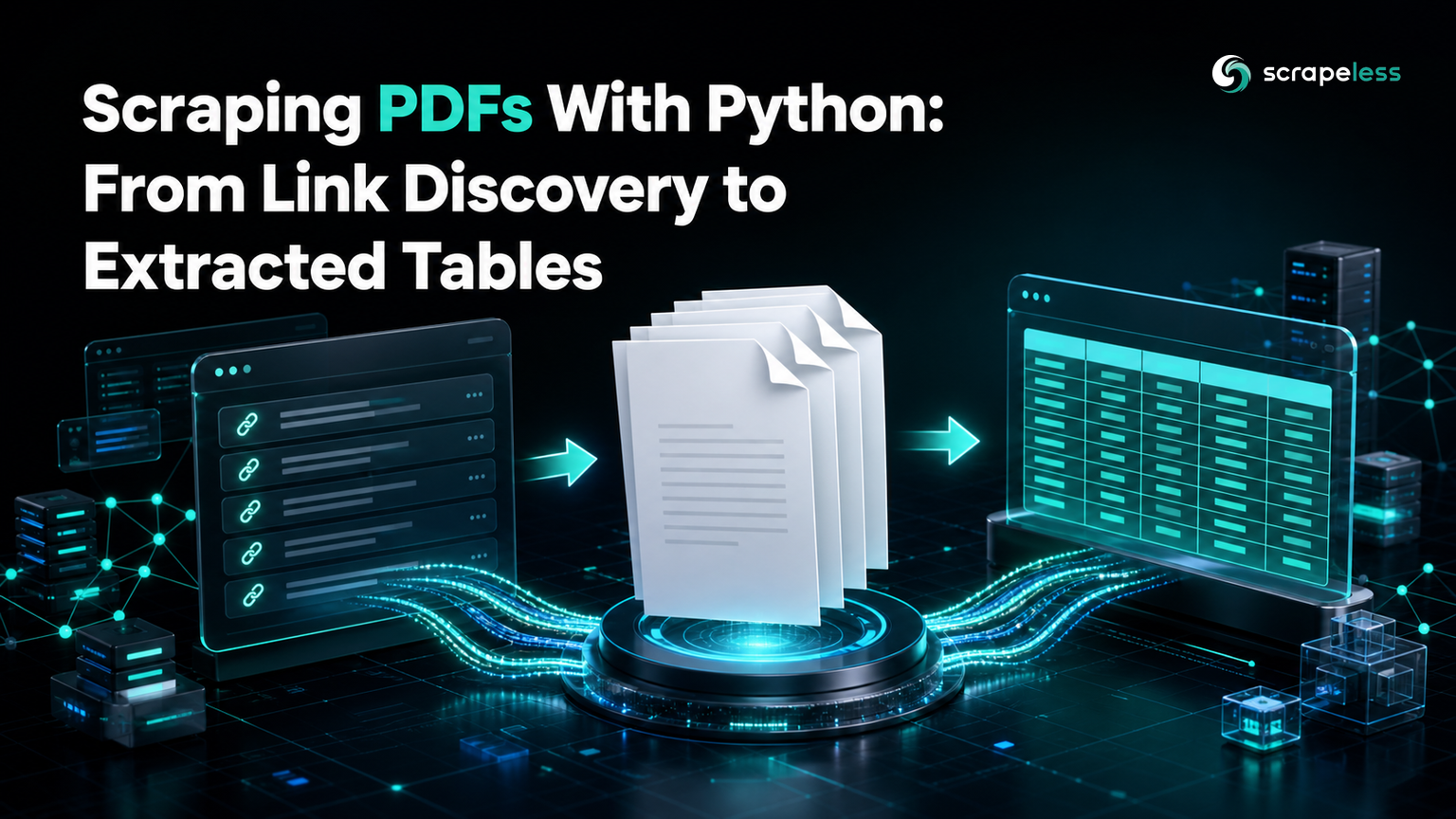
- Scraping a PDF starts on the HTML page that links it. A live index page yielded four document URLs before any parsing began, and that discovery step is the part most guides skip.
- A PDF has to arrive as bytes. Routing the same document through a text-returning endpoint produced 235,403 bytes against a real file of 140,815, and neither pypdf nor pdfplumber could read a page from the result.
- Opening a file is not reading it. Constructing a reader over those corrupted bytes raised nothing at all; the failure appeared only when a page was touched.
- pdfplumber gives you page geometry, pypdf gives you document structure. One live page returned 5,659 characters of text, 4 detected tables, and 933 positioned words.
- Not every detected table is data. Those four tables had 1, 7, 2, and 10 columns, and most of them are layout scaffolding rather than records.
- Start free. The link-discovery fetch runs on the Universal Scraping API's free tier.
Public institutions publish their most useful data as PDFs. Budgets, filings, statistics, and inspection results arrive as documents designed for printing, and a scraper that stops at the HTML never sees any of it.
This guide starts on a page that links four PDFs, downloads one, and pulls text, tables, and word positions out of it — then measures exactly what happens when the file takes the wrong route to get there.
What a PDF Is, for Scraping Purposes
A PDF is a binary container describing where marks go on a page. It has no notion of a paragraph, a heading, or a table — only glyphs at coordinates, a page-description model catalogued in the Library of Congress format description for the PDF family. Its media type, registered in the application/pdf media type specification, is binary precisely because the format is not text.
That single fact drives everything below. Extracting "the text" means reconstructing reading order from positions, and extracting "a table" means inferring rows and columns from ruling lines and alignment. Two libraries divide the work:
- pypdf reads document structure — page count, metadata, encryption state, and page-level text.
- pdfplumber reads page geometry — characters with coordinates, detected ruling lines, and tables built from them.
Install
bash
pip install pdfplumber pypdf beautifulsoup4pdfplumber pulls in pdfminer.six, which does the low-level parsing. Nothing here needs a system package or a headless browser.
Stage 1: Discover the Links
Documents are referenced from ordinary pages, so the first step is HTML work. Fetch the index page and collect every .pdf href, resolved to absolute URLs:
python
import urllib.parse

from bs4 import BeautifulSoup


def pdf_links(html, base_url):
    soup = BeautifulSoup(html, "html.parser")
    return sorted({
        urllib.parse.urljoin(base_url, a["href"])
        for a in soup.select('a[href$=".pdf"]')
    })
urljoin matters because these hrefs are usually site-relative — the page under test returns /pub/irs-pdf/fw9.pdf, which is not fetchable on its own. The set deduplicates a document linked more than once, which index pages do constantly.
On a live run that returned four documents:
text
https://www.irs.gov/pub/irs-pdf/fw9.pdf
https://www.irs.gov/pub/irs-pdf/iw9.pdf
https://www.irs.gov/pub/irs-pdf/p1281.pdf
https://www.irs.gov/pub/irs-pdf/p5027.pdf
The index page itself is fetched through the Universal Scraping API, which returns rendered HTML as a string — exactly right for a page, and exactly wrong for the documents it links, as the next stage shows.
Stage 2: Download as Bytes
python
import urllib.request

BROWSER_UA = ("Mozilla/5.0 (X11; Linux x86_64) AppleWebKit/537.36 "
              "(KHTML, like Gecko) Chrome/150.0.0.0 Safari/537.36")


def fetch_bytes(url):
    """Fetch a binary file. PDFs must arrive as bytes, never as text."""
    request = urllib.request.Request(url, headers={"User-Agent": BROWSER_UA})
    with urllib.request.urlopen(request, timeout=120) as response:
        return response.read()
response.read() with no .decode() is the whole point. The downloaded file was 140,815 bytes beginning with the header %PDF-, which is the five-byte signature every valid document starts with — a cheap assertion worth making before parsing.
Stage 3: Read the Document Structure
python
import io

from pypdf import PdfReader

reader = PdfReader(io.BytesIO(raw))
print(len(reader.pages), reader.is_encrypted)
io.BytesIO avoids writing a temporary file. The live document reported 6 pages and encrypted=False. Encryption is worth checking early: an encrypted document opens fine and yields empty text, which looks identical to a document that simply has no text layer.
Stage 4: Extract the Text
python
import pdfplumber

with pdfplumber.open(io.BytesIO(raw)) as pdf:
    page = pdf.pages[0]
    text = page.extract_text() or ""
    words = page.extract_words()
Page one returned 5,659 characters, opening on the line 'W-9', and 933 positioned words.
The or "" is not defensive padding. extract_text() returns None when a page carries no text layer — a scanned image, typically — and that None will otherwise fail somewhere far away from its cause. Treat it as a signal that the page needs a different tool, not as an empty string.
extract_words() is what makes pdfplumber worth the dependency. Each word comes back with x0, x1, top, and bottom coordinates, so when reading order is scrambled by a multi-column layout you can select by position instead of hoping the text stream is sensible.
Stage 5: Extract the Tables
python
tables = page.extract_tables()
for index, table in enumerate(tables, 1):
    widest = max(len(row) for row in table)
    print(f"table {index}: {len(table)} rows x {widest} cols")
The live page produced four tables:
text
table 1: 4 rows x 1 cols
table 2: 2 rows x 7 cols
table 3: 1 rows x 2 cols
table 4: 2 rows x 10 cols
A one-column table and a one-row table are not datasets. They are boxed regions of the form's layout that satisfy the same ruling-line heuristic as a real table. This is the part worth internalizing: extract_tables() reports rectangular structures it detected, and deciding which of them carry records is your job. Filter on shape before trusting anything — a plausible minimum is two rows and two columns, tightened to whatever your document actually uses.
Getting started needs no card — the free plan covers the discovery fetch.
What Happens When a PDF Travels as Text
The rule stated in stage 2 deserves evidence rather than assertion, so the same document was fetched a second way — through the text-returning endpoint used for the index page — and the result measured:
text
same pdf through the text endpoint: 235403 bytes (real file is 140815)
  pypdf reads it: failed (PdfReadError)
  pdfplumber reads it: failed (PdfminerException)
The file grew by 67%. Decoding arbitrary bytes as text and re-encoding them expands anything outside the ASCII range into multi-byte sequences, the mechanism described in the UTF-8 encoding specification, and bytes that were never valid text are replaced outright. The result still begins with %PDF-, which is why this failure is convincing enough to waste an afternoon on.
One detail matters more than the byte count. Constructing a PdfReader over that data raises nothing — the object is created, and only touching reader.pages fails. A check that stops at "did it open" reports success on a file that cannot be read, so verify by reading a page:
python
def page_count(data):
    return len(PdfReader(io.BytesIO(data)).pages)
Use a text-returning API for HTML and a byte-returning fetch for documents. The two are not interchangeable, and the failure mode is quiet.
The Whole Pipeline
python
import io
import json
import logging
import os
import urllib.parse
import urllib.request

import pdfplumber
from bs4 import BeautifulSoup
from pypdf import PdfReader

logging.getLogger("pypdf").setLevel(logging.CRITICAL)
logging.getLogger("pdfminer").setLevel(logging.CRITICAL)

UNLOCKER = "https://api.scrapeless.com/api/v2/unlocker/request"
INDEX = "https://www.irs.gov/forms-pubs/about-form-w-9"
BROWSER_UA = ("Mozilla/5.0 (X11; Linux x86_64) AppleWebKit/537.36 "
              "(KHTML, like Gecko) Chrome/150.0.0.0 Safari/537.36")


def fetch_html(url):
    """Fetch a rendered HTML page as text."""
    payload = json.dumps({
        "actor": "unlocker.webunlocker",
        "input": {"url": url, "proxy_country": "US", "js_render": False},
    }).encode()
    request = urllib.request.Request(
        UNLOCKER, data=payload,
        headers={"Content-Type": "application/json",
                 "x-api-token": os.environ["SCRAPELESS_API_KEY"]},
    )
    with urllib.request.urlopen(request, timeout=120) as response:
        return json.loads(response.read().decode())["data"]


def fetch_bytes(url):
    """Fetch a binary file. PDFs must arrive as bytes, never as text."""
    request = urllib.request.Request(url, headers={"User-Agent": BROWSER_UA})
    with urllib.request.urlopen(request, timeout=120) as response:
        return response.read()


def pdf_links(html, base_url):
    soup = BeautifulSoup(html, "html.parser")
    return sorted({
        urllib.parse.urljoin(base_url, a["href"])
        for a in soup.select('a[href$=".pdf"]')
    })


def main():
    html = fetch_html(INDEX)
    links = pdf_links(html, INDEX)
    print(f"index page: {len(html)} chars")
    print(f"pdf links discovered: {len(links)}")
    for link in links:
        print(f"  {link}")

    target = next(link for link in links if link.endswith("fw9.pdf"))
    raw = fetch_bytes(target)
    print(f"downloaded: {len(raw)} bytes, header {raw[:5].decode('latin-1')!r}")

    reader = PdfReader(io.BytesIO(raw))
    print(f"pypdf: {len(reader.pages)} pages, encrypted={reader.is_encrypted}")

    with pdfplumber.open(io.BytesIO(raw)) as pdf:
        page = pdf.pages[0]
        text = page.extract_text() or ""
        print(f"pdfplumber page 1: {len(text)} chars of text")
        print(f"  first line: {text.splitlines()[0][:60]!r}")

        tables = page.extract_tables()
        print(f"tables on page 1: {len(tables)}")
        for index, table in enumerate(tables, 1):
            widest = max(len(row) for row in table)
            print(f"  table {index}: {len(table)} rows x {widest} cols")

        print(f"positioned words on page 1: {len(page.extract_words())}")

    # A PDF is binary. Prove what happens if it travels as text.
    as_text = fetch_html(target).encode("utf-8")
    print(f"same pdf through the text endpoint: {len(as_text)} bytes "
          f"(real file is {len(raw)})")

    # Open AND read a page — a lenient constructor is not proof the file is usable.
    def read_with_pypdf(data):
        return len(PdfReader(io.BytesIO(data)).pages)

    def read_with_pdfplumber(data):
        with pdfplumber.open(io.BytesIO(data)) as opened:
            return len(opened.pages)

    for name, read in (("pypdf", read_with_pypdf), ("pdfplumber", read_with_pdfplumber)):
        try:
            print(f"  {name} reads it: {read(as_text)} pages")
        except Exception as exc:
            print(f"  {name} reads it: failed ({type(exc).__name__})")


if __name__ == "__main__":
    main()
Its output:
text
index page: 99970 chars
pdf links discovered: 4
  https://www.irs.gov/pub/irs-pdf/fw9.pdf
  https://www.irs.gov/pub/irs-pdf/iw9.pdf
  https://www.irs.gov/pub/irs-pdf/p1281.pdf
  https://www.irs.gov/pub/irs-pdf/p5027.pdf
downloaded: 140815 bytes, header '%PDF-'
pypdf: 6 pages, encrypted=False
pdfplumber page 1: 5659 chars of text
  first line: 'W-9'
tables on page 1: 4
  table 1: 4 rows x 1 cols
  table 2: 2 rows x 7 cols
  table 3: 1 rows x 2 cols
  table 4: 2 rows x 10 cols
positioned words on page 1: 933
same pdf through the text endpoint: 235403 bytes (real file is 140815)
  pypdf reads it: failed (PdfReadError)
  pdfplumber reads it: failed (PdfminerException)
The two logging lines at the top are worth keeping. Both libraries emit recovery warnings on damaged input, and on the corrupted document that noise buries the one line that matters.
Troubleshooting
extract_text() returns None or an empty string. The page has no text layer, which almost always means it is a scanned image. No amount of parser configuration recovers text that was never encoded; that job needs optical character recognition, which is a different pipeline with different accuracy characteristics.
Text comes out interleaved between columns. The text stream follows the order glyphs were written, not reading order. Use extract_words() and group by the top coordinate, or crop the page with page.crop((x0, top, x1, bottom)) and extract each column separately.
extract_tables() finds nothing on a page that clearly has a table. The default strategy looks for ruling lines. A table separated by whitespace alone needs table_settings={"vertical_strategy": "text", "horizontal_strategy": "text"}, which infers columns from alignment instead.
Cells contain None. Merged and empty cells come back as None rather than "". Normalize before writing anywhere, and treat a row that is mostly None as a detection artifact rather than a record.
Every document parses but the numbers are wrong. Check whether the file was fetched as bytes. A file corrupted in transit can still carry the %PDF- header and still construct a reader object, so compare the downloaded length against the Content-Length the server reported — the field defined in the HTTP semantics specification.
Conclusion
The PDF part of PDF scraping is the easy part. Two libraries cover it: pypdf for structure, pdfplumber for anything that depends on where things sit on the page.
The parts that go wrong sit on either side. Finding the documents is HTML work, and getting them intact is a transport question with a quiet failure mode — a file that arrives 67% larger, still starts with %PDF-, still constructs a reader, and cannot be read. Assert on the byte count and read a page before believing any of it.
Ready to point this at your own documents? Create a free Scrapeless account, export your key, and run the discovery stage against a page you already collect. Plan limits are on the pricing page. If you only need plain text out of mixed document formats rather than page geometry, the document-to-Markdown guide covers a lighter path.
FAQ
Q: Should I use pdfplumber or pypdf?
Use pypdf when you need document-level facts — page count, metadata, encryption state, merging or splitting files — and pdfplumber when you need to know where things are on the page, which covers table extraction and any multi-column layout. They coexist happily; the pipeline in this post uses both, and pdfplumber is the heavier dependency because it carries a full layout engine.
Q: Why did my PDF download succeed but fail to parse?
Most often it was decoded as text somewhere in transit. Fetch with response.read() and no .decode(), then check two things: that the first five bytes are %PDF-, and that the length matches what the server advertised. A text round trip inflates the file — 140,815 bytes became 235,403 in the measurement here — while leaving the header intact.
Q: Can I extract tables from a scanned PDF?
Not with these libraries. A scan is an image, and both tools read the text and vector layers a document carries. extract_text() returning None is the tell. Recovering that content requires OCR, and the output should be treated as an estimate to be validated rather than as extracted data.
Q: How do I find the PDF links when they are not plain anchors?
Widen the selector before reaching for a browser: many sites link documents through a redirect path with no .pdf suffix, so match on a URL pattern or on link text instead of the extension. If the links are genuinely written by client-side JavaScript, the index page needs rendering — but check the initial HTML first, because the URLs are frequently already there.
Q: Is extract_tables() reliable enough for production?
For documents with ruled tables and a stable layout, yes, provided you validate the shape of what comes back. The live page here returned four tables of which most were layout regions, so a filter on minimum rows and columns is not optional. When a document's tables are defined by whitespace alone, switch to the text-based strategy and re-check the results against a page you have read yourself.
Q: How should I handle very large documents?
Iterate pdf.pages rather than materializing everything, and close the document with the context manager as the examples do. If you only need part of a file, page.crop() limits the work to a region, and pypdf can split a large document into smaller ones before the expensive geometry work begins.
At Scrapeless, we only access publicly available data while strictly complying with applicable laws, regulations, and website privacy policies. The content in this blog is for demonstration purposes only and does not involve any illegal or infringing activities. We make no guarantees and disclaim all liability for the use of information from this blog or third-party links. Before engaging in any scraping activities, consult your legal advisor and review the target website's terms of service or obtain the necessary permissions.