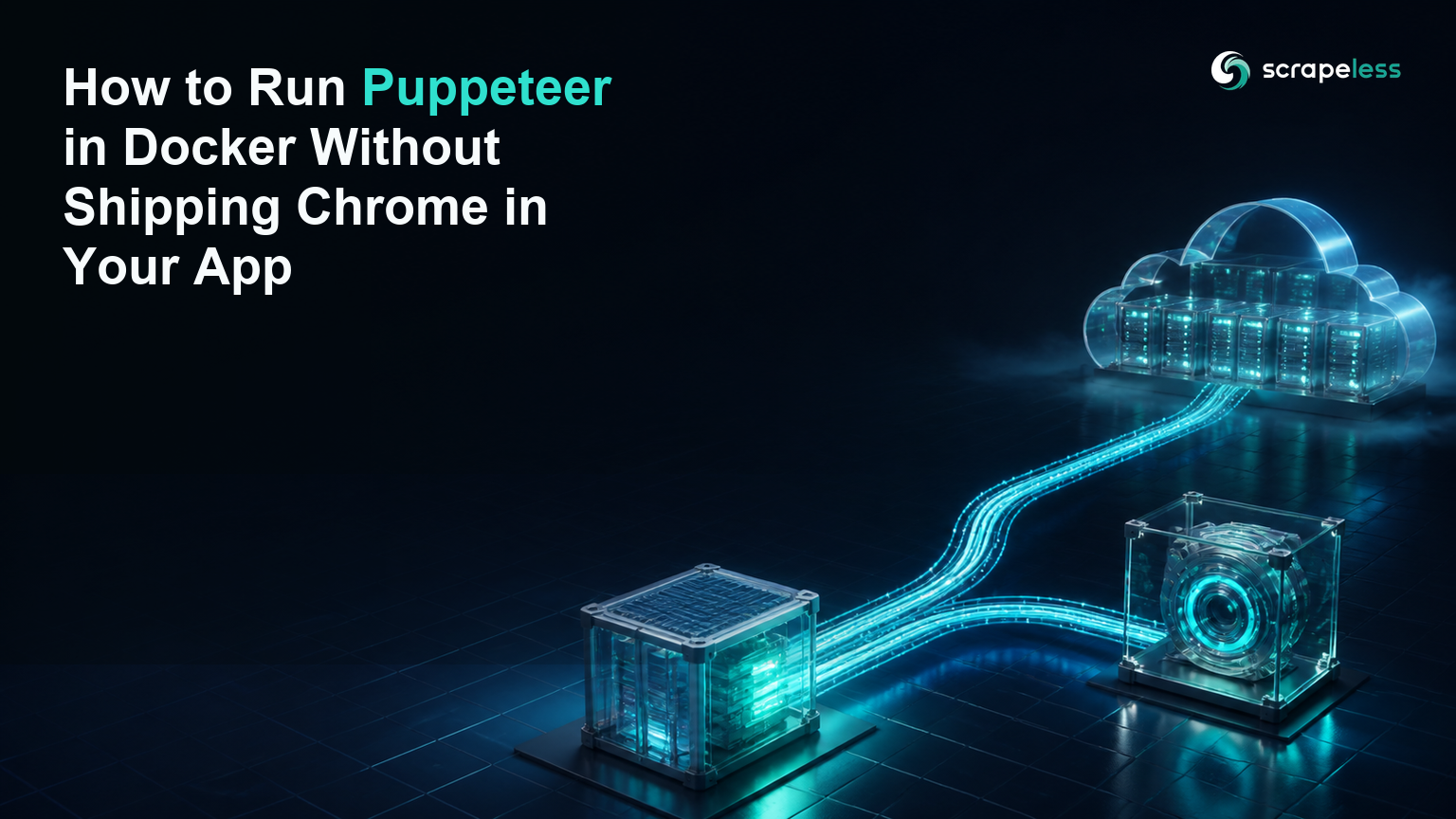
How to Run Puppeteer in Docker Without Shipping Chrome in Your App

Expert Network Defense Engineer
TL;DR:
- Puppeteer Docker deployments fail when the Node package, Chrome executable, and Linux runtime are treated as one invisible dependency. Make each boundary explicit.
- The official image is the fastest complete baseline. It packages Puppeteer, Chrome for Testing, and required libraries under a known release tag.
- A system-Chrome image gives you operating-system control but makes Chrome installation and compatibility your responsibility. Pin both sides and run a launch smoke check during the build.
puppeteer-corecontains the client without downloading Chrome. Pair it with a separately operated browser when the application image should remain browser-free.- Scrapeless Scraping Browser lets the app container connect to a managed cloud browser. Chrome lifecycle, browser dependencies, and browser egress leave the Node.js image.
- Free to start. New Scrapeless accounts include free Scraping Browser runtime — sign up at app.scrapeless.com.
Introduction: Puppeteer Needs a Browser Contract
npm install puppeteer is not the whole deployment. Puppeteer also needs a compatible Chrome executable, Linux shared libraries, fonts, a writable profile directory, enough memory, and a process model that closes child processes cleanly.
Docker makes those dependencies reproducible only when they are written down. An official image writes them down for you. A custom image moves the contract into your Dockerfile. A remote-browser design keeps the contract outside the application image and leaves puppeteer-core as the client.
This guide uses Puppeteer Core 25.8.0 and Scrapeless SDK 1.11.0, both installed during verification. The local package launched a Chrome executable supplied outside its npm package and returned the expected page title.
Why Puppeteer Needs More Than npm Install in Docker
Puppeteer and Puppeteer Core solve different packaging problems.
| Package | Browser download | Intended use |
|---|---|---|
puppeteer |
Manages a compatible Chrome for Testing during installation | Local or container launch with the bundled browser |
puppeteer-core |
Does not download a browser | Connect to an existing executable or remote browser endpoint |
The package choice does not configure PID 1, shared memory, the browser sandbox, fonts, certificates, or container resource limits. Those remain deployment responsibilities.
Prerequisites
- Node.js 20 for the application container.
- Docker for the official-image and system-Chrome patterns.
- Puppeteer Core
25.8.0for the browser-free application pattern. - A Scrapeless account and API key for the managed cloud browser.
- A public or explicitly authorized target.
Note: Docker is unavailable in the verification environment, so the image builds and
docker runcommands are labelled prerequisite gaps. Puppeteer Core25.8.0was installed and launched against a Chrome executable outside the package; the Scrapeless SDK loaded and exposed its Puppeteer connection function, but no key was available for a cloud session.
Option 1 — Start From the Official Puppeteer Image
The official image includes Chrome for Testing, its system dependencies, and a matching Puppeteer release. the Puppeteer Docker guide documents the image and its sandbox-oriented runtime requirements.
Pin the image instead of using latest:
dockerfile
FROM ghcr.io/puppeteer/puppeteer:25.8.0

WORKDIR /home/pptruser/app
COPY --chown=pptruser:pptruser package.json package-lock.json ./
RUN npm ci
COPY --chown=pptruser:pptruser . .

CMD ["node", "capture.mjs"]
The documented image runs Chrome with its sandbox, so the container runtime must provide the required capability. It also needs an init process to manage browser children:
bash
docker build -t puppeteer-job:25.8.0 .
docker run --rm --init --cap-add=SYS_ADMIN puppeteer-job:25.8.0
Grant capabilities only after reviewing the workload and runtime. NIST container-security guidance separates image risk, registry risk, orchestrator controls, runtime controls, and host controls.
Option 2 — Install System Chrome Yourself
A custom system-Chrome image is appropriate when the organization already manages a browser repository, certificate chain, fonts, or base image.
The application must point Puppeteer Core at the installed executable:
javascript
import puppeteer from "puppeteer-core";

const browser = await puppeteer.launch({
  executablePath: process.env.PUPPETEER_EXECUTABLE_PATH,
  headless: true,
});

const page = await browser.newPage();
await page.setContent("<title>Chrome outside the npm package</title>");
console.log(await page.title());
await browser.close();
The executed verification used an external Chrome executable and printed Chrome outside the npm package. That confirms puppeteer-core did not need to ship the browser it controlled.
Your Dockerfile now owns Chrome installation and compatibility. Pin the browser package, assert its version during the image build, and run the launch script before publishing the image.
Five Container Failures to Diagnose Separately
Puppeteer container failures become easier to resolve when the error is mapped to one boundary.
| Failure | Evidence to inspect | Correction |
|---|---|---|
| Executable missing | executablePath and image package list |
Install Chrome or connect to a remote browser |
| Shared library missing | Browser stderr and linked-library check | Add the specific operating-system dependency |
| Sandbox launch error | User, kernel policy, and container capability | Restore the supported non-root sandbox contract |
| Renderer closes under load | Memory, IPC, and /dev/shm configuration |
Set explicit container resources and shared memory |
| Child processes remain | PID 1 and shutdown signal handling | Use --init and close the browser in finally |
Linux namespaces isolate process views, mounts, users, and network resources. the Linux namespaces manual describes those isolation primitives. The browser sandbox and the container boundary complement each other; one does not replace the other.
Start Scraping with Scrapeless
Power up your web scraping and automation workflow with Scrapeless!
Sign up today and get $5 in free credit — no credit card required.Claim your free credit now in the Scrapeless Dashboard.
Move Chrome Out of the App Container
A browser-free application image installs puppeteer-core, opens a remote browser session, performs the approved page work, and closes the connection. The browser service scales and upgrades independently.
Install the exact packages used in the verification project:
bash
npm install puppeteer-core@25.8.0 @scrapeless-ai/sdk@1.11.0Note: The following connection requires your Scrapeless API key. The installed SDK export was checked locally, but the credential-free environment could not open the cloud browser.
javascript
import { Puppeteer } from "@scrapeless-ai/sdk";

const browser = await Puppeteer.connect({
  sessionName: "browser-free-app",
  sessionTTL: 300,
  proxyCountry: "US",
  defaultViewport: null,
});

const page = await browser.newPage();
await page.goto("https://example.com", { waitUntil: "domcontentloaded" });
console.log(await page.title());
await browser.close();
Scrapeless Scraping Browser is the browser layer in this pattern. Review the Scraping Browser quickstart, product page, and pricing before adopting it in CI.
Compose the Application Around the Remote Boundary
The application container no longer needs a Chrome service in the same Compose project. It needs only the Node.js code, its lockfile, the Puppeteer Core client, and a secret supplied at runtime.
yaml
services:
  worker:
    build: .
    init: true
    environment:
      SCRAPELESS_API_KEY: ${SCRAPELESS_API_KEY}
    read_only: true
    tmpfs:
      - /tmp:size=64m
This Compose file expresses the application boundary, not the cloud browser. The API key comes from the deployment secret store. The worker has a read-only root filesystem and a bounded temporary directory.
The Open Container Initiative runtime configuration defines the process, environment, mounts, and Linux resources that runtimes translate into the container process.
Choose the Right Pattern
Use the official image when a complete, matching Puppeteer-and-Chrome artifact is more valuable than a small image. Install system Chrome when your platform team already owns the browser distribution and operating-system policy. Use Puppeteer Core with Scrapeless Scraping Browser when the application should not ship or operate Chrome.
The decision can vary by job. PDF rendering for an internal template may stay in a pinned local image. Public-web extraction that needs regional browser egress may belong on a managed cloud browser. Keep both behind the same job contract so callers do not depend on the browser location.
The Scrapeless cloud-browser Puppeteer example shows the managed connection in a broader automation workflow.
Operations Checklist
- Pin Puppeteer, Chrome, base image, and lockfile versions.
- Run a browser launch and title assertion before publishing the image.
- Use an init process and close browser sessions in
finally. - Preserve the browser sandbox for untrusted pages.
- Set CPU, memory, IPC, and temporary-storage limits explicitly.
- Put API keys in the runtime secret store, never in image layers.
- Keep no more than three concurrent workers per target host unless the owner approves another limit.
- Record the package, browser, image, region, and job revision with the output.
Conclusion: Decouple the Client From Chrome
Puppeteer becomes easier to operate when the client package and browser runtime are separate, visible decisions. The official image bundles them. A custom image lets your team own both. Puppeteer Core and Scrapeless Scraping Browser split them across a managed connection.
Choose one contract per job type, pin it, and test the browser boundary before the application workload begins.
Ready to Run Puppeteer Without Chrome in the App Image?
Join our community to claim a free plan and connect with developers separating browser workloads from Node.js services: Discord · Telegram.
Sign up at app.scrapeless.com for free Scraping Browser runtime and test the browser-free worker pattern.
FAQ
Q: Does Puppeteer Core include Chrome?
Puppeteer Core does not download or manage Chrome. It needs an explicit executable path or a remote browser connection.
Q: Is the official Puppeteer image safer than a custom image?
The official image provides a documented browser-and-dependency baseline, but safety still depends on image provenance, runtime capabilities, user identity, sandbox policy, host controls, and the pages being opened.
Q: Why does Chrome fail only inside Docker?
The container may be missing the executable, a linked library, sandbox support, shared memory, fonts, or a proper init process. Inspect the failing boundary instead of changing navigation code first.
Q: Does a remote Puppeteer browser need a proxy?
The remote browser needs an egress policy that matches the job. Scrapeless Scraping Browser supports residential proxies in 195+ countries; pin the approved country for a consistent run.
Q: What should happen when selectors change?
Re-check the rendered page and update selectors against stable roles, attributes, or data structures. Moving Chrome outside Docker does not freeze the target DOM.
Q: How much concurrency should a Puppeteer worker use?
Keep no more than three workers per target host unless the owner approves another limit. Browser fleet capacity and target-host concurrency are separate controls.
Q: Can Puppeteer Core connect without an AI agent?
Yes. Puppeteer Core and the Scrapeless SDK are direct Node.js interfaces. An AI agent is optional and should not change access, concurrency, or secret-handling rules.
At Scrapeless, we only access publicly available data while strictly complying with applicable laws, regulations, and website privacy policies. The content in this blog is for demonstration purposes only and does not involve any illegal or infringing activities. We make no guarantees and disclaim all liability for the use of information from this blog or third-party links. Before engaging in any scraping activities, consult your legal advisor and review the target website's terms of service or obtain the necessary permissions.