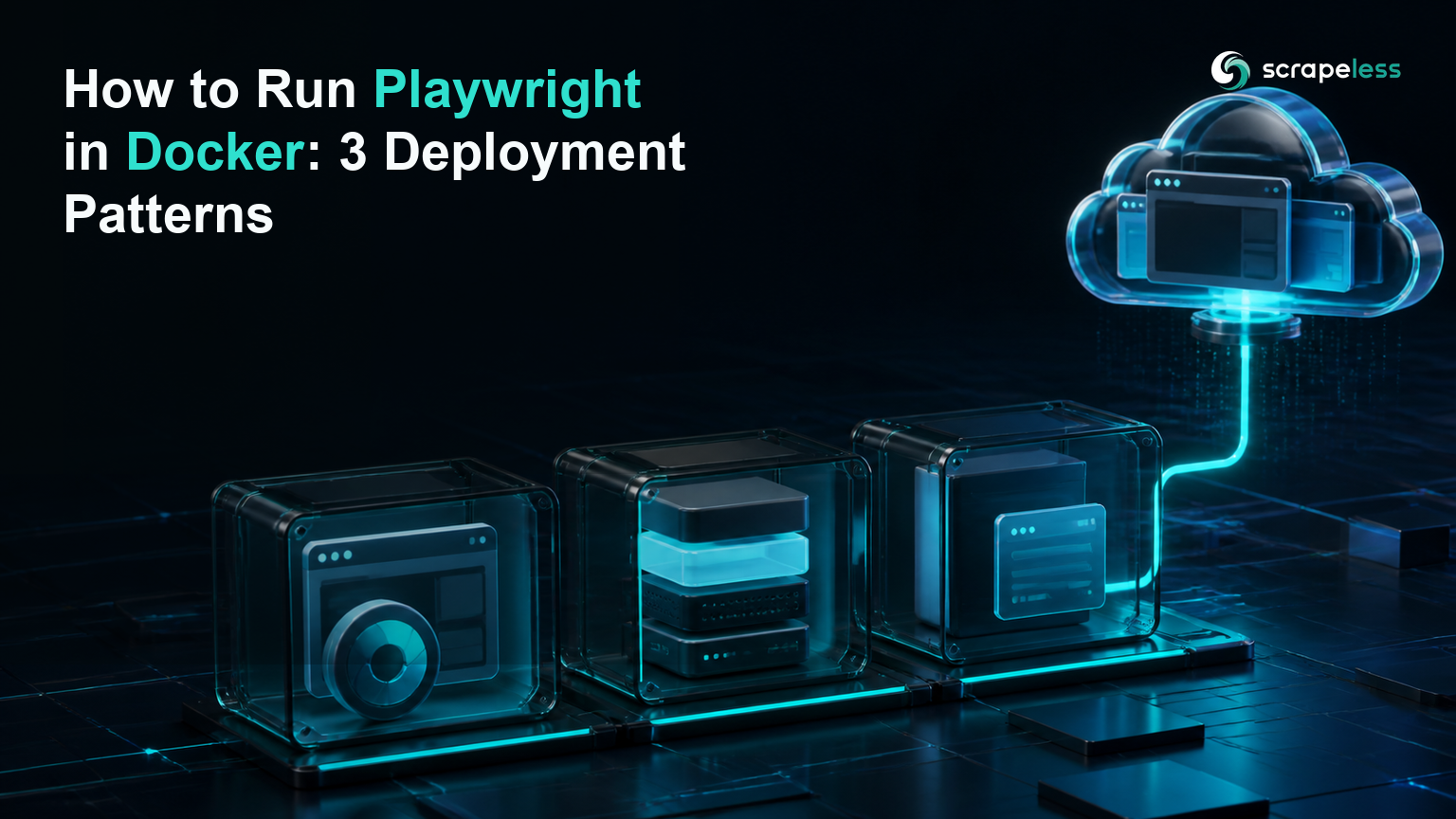
How to Run Playwright in Docker: 3 Deployment Patterns

Scraping and Proxy Management Expert
TL;DR:
- Playwright in Docker has three practical deployment patterns. Use the official image, build a controlled browser image, or keep the test runner in a container and move the browser to Scrapeless Scraping Browser.
- The Playwright package and browser image must agree on a release line. A package/image mismatch can leave the client looking for browser executables that the image does not contain.
- Chromium needs explicit process and memory handling in a container. Run an init process, give Chromium adequate shared memory, and preserve the sandbox for untrusted pages.
- A custom image earns its maintenance cost only when fonts, certificates, system packages, or browser policy must be fixed in the artifact. Otherwise, the official image is the simpler baseline.
- A remote cloud browser removes browser binaries from the application image. Playwright code remains in CI while Scrapeless operates the cloud browser and regional egress.
- Free to start. New Scrapeless accounts include free Scraping Browser runtime — sign up at app.scrapeless.com.
Introduction: Containerizing Playwright Means Containerizing a Browser
Playwright code is a small Node.js dependency; the browsers and their Linux libraries are the heavy part. A container that installs only the package can build successfully and still fail when Chromium starts because the executable, fonts, shared libraries, sandbox permissions, or shared memory are missing.
The deployment choice is therefore architectural. The official image couples Playwright to a prepared browser environment. A custom image gives you control over the operating system. A remote browser keeps the application container focused on test or extraction code and moves browser operation to a separate service.
This guide compares all three patterns with Playwright 1.62.0, the version pinned to the official image and loaded during verification.
Why Playwright Breaks in Containers
Playwright in Docker usually fails at one of five boundaries.
| Boundary | Typical symptom | Design response |
|---|---|---|
| Browser executable | “Executable doesn't exist” | Pin package and image together |
| Linux libraries | Browser exits during launch | Start from a browser-ready image or install dependencies explicitly |
| Shared memory | Renderer closes under page load | Give Chromium an appropriate IPC/shared-memory configuration |
| Process lifecycle | Defunct child processes accumulate | Run an init process as PID 1 |
| Sandbox/user | Browser starts only with weakened isolation | Run as a non-root user with the required kernel policy |
The official Playwright Docker guidance documents the prepared images, version matching, --init, shared memory, and the separate-user model for untrusted pages.
Three Deployment Patterns at a Glance
| Pattern | Browser location | Image maintenance | Best fit |
|---|---|---|---|
| Official Playwright image | Same container as the runner | Low | CI and controlled test targets |
| Custom browser image | Same container as the runner | High | Fixed fonts, certificates, packages, or policy |
| Scrapeless cloud browser | Outside the application container | Browser layer managed separately | Dynamic pages, regional egress, independent browser scaling |
Do not choose by image size alone. Account for browser security, upgrade ownership, concurrency, page trust, artifact reproducibility, and whether the browser needs network access that differs from the test runner.
Prerequisites
- Node.js 20 in the application project.
- Playwright
1.62.0inpackage.json. - Docker for the first two patterns.
- A Scrapeless account and API key for the remote-browser pattern.
- An approved test target or public page.
Note: Docker is not installed in the verification environment, so Docker builds and container commands below are prerequisite gaps. The exact Playwright and Scrapeless SDK packages were installed; a local Chromium page loaded successfully, and the SDK's
Playwright.connectexport was confirmed as callable.
Option 1 — Use the Official Playwright Image
The official image is the best baseline when the container runs trusted end-to-end tests and you do not need operating-system customization.
Pin the package and image to the same Playwright release line:
dockerfile
FROM mcr.microsoft.com/playwright:v1.62.0-noble

WORKDIR /app
COPY package.json package-lock.json ./
RUN npm ci
COPY . .

USER pwuser
CMD ["node", "check.mjs"]
Build and run it with an init process and explicit IPC policy:
bash
docker build -t playwright-check:1.62.0 .
docker run --rm --init --ipc=host playwright-check:1.62.0
Keep the target trust model explicit. A root-run browser without its sandbox may be acceptable for controlled internal tests, but it is not the default for arbitrary pages. The NIST application-container security guide treats image provenance, runtime configuration, host controls, and workload isolation as separate layers.
Option 2 — Build a Controlled Browser Image
A custom image is useful when the browser needs organization certificates, language fonts, media libraries, or a base distribution that matches the rest of the platform.
The smallest clear Dockerfile starts from a supported Debian base and asks Playwright to install the browser and its operating-system dependencies:
dockerfile
FROM node:20-bookworm

WORKDIR /app
COPY package.json package-lock.json ./
RUN npm ci
RUN npx playwright install --with-deps chromium

RUN useradd --create-home --shell /usr/sbin/nologin runner \
    && chown -R runner:runner /app
USER runner

COPY --chown=runner:runner . .
CMD ["node", "check.mjs"]
Pin the Node base by digest in production and rebuild when the browser package changes. The image now belongs to your team: vulnerability scanning, certificates, fonts, browser updates, and base-image refresh all move into your release process.
Shared Memory, Sandbox, Fonts, and PID 1
Container stability depends on the runtime contract around Chromium.
Shared memory. Chromium uses shared memory for renderer processes. Decide the IPC or /dev/shm policy in deployment configuration instead of discovering it after a renderer closes under load.
Sandbox. Run untrusted pages as a non-root user and preserve the browser sandbox. Linux seccomp can limit the system calls available to a process; the Linux seccomp filter documentation describes that kernel boundary.
Fonts and locale. A browser can be functionally healthy while producing wrong line breaks, missing glyphs, or screenshot differences. Install only the language packs the test contract requires and assert one representative glyph during image validation.
PID 1. Chromium creates child processes. An init process should receive signals and reap children. The Open Container Initiative runtime configuration defines the process and Linux runtime fields that a compliant container runtime consumes.
Start Scraping with Scrapeless
Power up your web scraping and automation workflow with Scrapeless!
Sign up today and get $5 in free credit — no credit card required.Claim your free credit now in the Scrapeless Dashboard.
Option 3 — Move the Browser Out of the Container
A remote cloud browser separates the Playwright client from the browser process. The CI image keeps Node.js, the test code, and the client library; the managed browser owns Chromium, browser dependencies, session lifecycle, and regional browser egress.
Install the same packages used during interface verification:
bash
npm install playwright@1.62.0 @scrapeless-ai/sdk@1.11.0Note: The code below requires your Scrapeless API key. The package imports and
Playwright.connectinterface were executed locally, but the credential-free environment could not create the cloud session.
javascript
import { Playwright } from "@scrapeless-ai/sdk";

const browser = await Playwright.connect({
  sessionName: "container-runner",
  sessionTTL: 300,
  proxyCountry: "US",
});

const context = browser.contexts()[0];
const page = await context.newPage();
await page.goto("https://example.com", { waitUntil: "domcontentloaded" });
console.log(await page.title());
await browser.close();
The application image no longer needs a browser binary or its Linux libraries. That reduces coupling, but it introduces a network boundary: keep the API key in the CI secret store, restrict outbound access, choose the approved region, and close every session explicitly.
Read the Scraping Browser quickstart, product page, and pricing before moving a production workload.
CI/CD and Scaling Checklist
- Pin the Playwright package, browser image, and lockfile together.
- Fail the build when the package/image release lines differ.
- Run one smoke navigation before the full suite.
- Use a non-root browser user for untrusted pages.
- Configure init, IPC, CPU, memory, and ephemeral storage intentionally.
- Keep credentials in the CI secret store and out of layers or build logs.
- Limit parallel work to three workers per target host unless the owner approves another ceiling.
- Record browser, package, image, region, and test revision with the job result.
The Playwright proxy and cloud-browser guide extends the same separation to proxy policy and remote execution.
How to Choose
Use the official image when you want the shortest path to reproducible CI and the target pages are controlled. Build a custom image when browser dependencies are part of your application's tested artifact. Use Scrapeless Scraping Browser when browser binaries should not live in the application image or when the browser layer needs independent regional and capacity controls.
A hybrid is common: keep a small official-image job for deterministic internal tests and send approved public-web journeys to a managed cloud browser. The important choice is who owns the browser lifecycle for each class of work.
Conclusion: Put the Browser Behind a Clear Boundary
Playwright in Docker becomes predictable when the package, browser, operating system, and runtime policy are treated as one contract. The official image supplies that contract. A custom image lets you own it. A remote cloud browser moves it outside the application container.
Choose the boundary that matches page trust, maintenance capacity, and scaling needs, then pin and test the boundary as part of every release.
Ready to Simplify Playwright Infrastructure?
Join our community to claim a free plan and connect with developers running browser automation in CI: Discord · Telegram.
Sign up at app.scrapeless.com for free Scraping Browser runtime and test the remote-browser pattern from a small CI runner.
FAQ
Q: Is the official Playwright image enough for production CI?
The official Playwright image is a strong baseline when its release line matches the project package and the runtime policy fits the target's trust level. Production still needs image scanning, secrets management, resource limits, and job-level evidence.
Q: Why does Playwright work locally but fail in Docker?
The container may lack the expected browser executable, shared libraries, fonts, shared-memory policy, sandbox permissions, or child-process handling. Check those boundaries before changing selectors or waits.
Q: Should a Playwright container disable the Chromium sandbox?
A container that visits untrusted pages should preserve the browser sandbox and run as a suitable non-root user. Use a weakened sandbox only for a controlled trust model that your security team has approved.
Q: Does remote Playwright still need a proxy?
The browser layer still needs an approved egress policy. Scrapeless Scraping Browser can attach residential proxies in 195+ countries; pin the country required by the test or data contract.
Q: What happens when the target DOM changes?
Re-run the smoke journey and inspect role-based locators, page state, and the rendered output. Container health does not guarantee selector stability.
Q: How many Playwright workers should run against one host?
Keep no more than three workers per host unless the site owner approves another limit. Scale browser capacity independently from target-host concurrency.
Q: Can this deployment run without an AI agent?
Yes. All three patterns run standard Playwright code directly. An AI agent is optional and does not change the package, container, browser, or authorization boundaries.
At Scrapeless, we only access publicly available data while strictly complying with applicable laws, regulations, and website privacy policies. The content in this blog is for demonstration purposes only and does not involve any illegal or infringing activities. We make no guarantees and disclaim all liability for the use of information from this blog or third-party links. Before engaging in any scraping activities, consult your legal advisor and review the target website's terms of service or obtain the necessary permissions.