![How to Set Up IPv6 on Xbox [Ultimate Guide]](/_next/image?url=https%3A%2F%2Fassets.scrapeless.com%2Fprod%2Fposts%2Fipv6-on-xbox%2Fc3ad97bdca7e1523464b264b7b4e397d.png&w=1920&q=100)
How to Set Up IPv6 on Xbox [Ultimate Guide]

Expert Network Defense Engineer
Take a Quick Look
Ready to take your Xbox gaming to the next level? With Scrapeless Proxies, you can enjoy true IPv6 connectivity, ultra-low latency, and stable peer-to-peer matchmaking
IPv6, the most recent version of Internet Protocol, marks a significant technological leap from the older IPv4. It’s characterized by a vastly expanded address space using 128-bit addresses, in contrast to the 32-bit system of IPv4. This advancement addresses the critical issue of address exhaustion in IPv4, a key concern in our era of exponentially growing internet-connected devices.
For Xbox gamers, the transition to IPv6 brings several benefits. The larger address space of IPv6 eliminates the need for Network Address Translation (NAT), which can cause connectivity issues and lag in online gaming. By allowing direct device-to-device communication, IPv6 reduces latency and improves overall network efficiency — essential factors in multiplayer gaming experiences. Additionally, features like Stateless Address Autoconfiguration (SLAAC) simplify network configuration, making it easier for gamers without extensive technical knowledge to manage their network settings.
IPv6 also improves packet handling with a streamlined header and support for larger packets, leading to a smoother gaming experience.
This guide covers enabling IPv6 on your Xbox, from checking ISP and router compatibility to configuring network settings and enhancing your gaming with better connectivity and performance.
IPv6 Address Structure and Allocation
IPv6 addresses consist of 128 bits, typically represented in hexadecimal notation and divided into eight 16-bit blocks. Each block is separated by colons, making IPv6 addresses longer and more complex than IPv4 addresses. This structure allows for a vast number of unique IP addresses, addressing the need for more internet addresses.
There are three primary types of IPv6 addresses:
- Unicast – unique to a single network interface, facilitating direct delivery to a device.
- Multicast – for a group of devices, enabling efficient data distribution.
- Anycast – assigned to multiple devices, where data is sent to the nearest device in the group.
The allocation of these addresses is managed by IANA and regional internet registries, ensuring a structured and organized distribution of IP addresses globally.
Transition Mechanisms from IPv4 to IPv6
The transition from IPv4 to IPv6 involves several mechanisms to ensure seamless interoperability between the two protocols. One such method is the dual-stack approach, where network devices run both IPv4 and IPv6 simultaneously. This allows for a gradual transition as IPv6 adoption grows.
Tunneling is another technique where IPv6 traffic is encapsulated within IPv4 packets, enabling it to traverse IPv4 networks.
Translation mechanisms, such as NAT64, facilitate communication between IPv4 and IPv6 networks by converting IPv6 packets into IPv4 packets and vice versa.
These transition methods play a crucial role in the ongoing shift to IPv6, ensuring compatibility and continuity of internet services during the transition period.
Gaming-Specific Benefits
For gamers using a wide range of platforms, including Xbox, PlayStation, Nintendo Switch, and PCs, IPv6 brings substantial benefits. The protocol’s ability for direct device communication, without relying on NAT (Network Address Translation), significantly enhances peer-to-peer gaming experiences. This capability is crucial in reducing packet loss and latency — essential elements in fast-paced online games across these platforms.
Additionally, IPv6 inherently supports IPSec (Internet Protocol Security), a suite of protocols for securing Internet communication. This feature, though optional, provides a foundational layer for more secure gaming experiences, not only for Xbox users but also for those on PlayStation, Nintendo Switch, and PCs.
This enhanced security is vital in protecting data integrity and privacy in online gaming environments, making IPv6 a valuable technological advancement for the diverse gaming community.
Steps to Activate IPv6 on Xbox Devices
Enabling IPv6 can enhance your gaming experience by providing a more stable and efficient network connection. We’ll cover how to check if your ISP supports IPv6, ensure router compatibility, and adjust settings on your Xbox. Let’s get started:
1. Verify ISP IPv6 Support
First, verify if your Internet Service Provider (ISP) supports IPv6. This information is often available on the ISP’s website, in a section or FAQ about IPv6.
If it’s not clear, contact customer service to inquire about IPv6 support and any necessary actions or equipment upgrades on your end.
2. Router Compatibility
Ensure your router is compatible with IPv6. You can do this by:
- Refer to the Router’s Manual: Look for IPv6 support specifications.
- Check the Manufacturer’s Website: You can find detailed product information or firmware updates for IPv6.
- Accessing the Router’s Web Interface: This can provide direct information on IPv6 compatibility and settings.
Models from Netgear, ASUS, TP-Link, and Linksys often support IPv6.
Make sure IPv6 is enabled in the settings.
3. Configuring Router
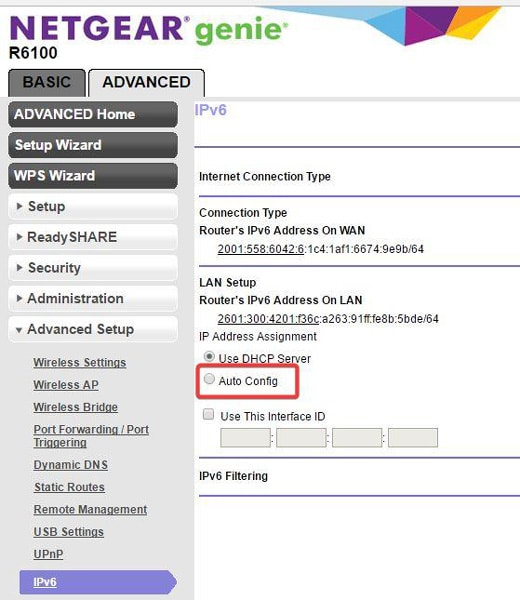
Netgear: Log in using the router’s login page and go to the Advanced option. Then click on Advanced Setup > IPv6, enable it, and select Auto Config.
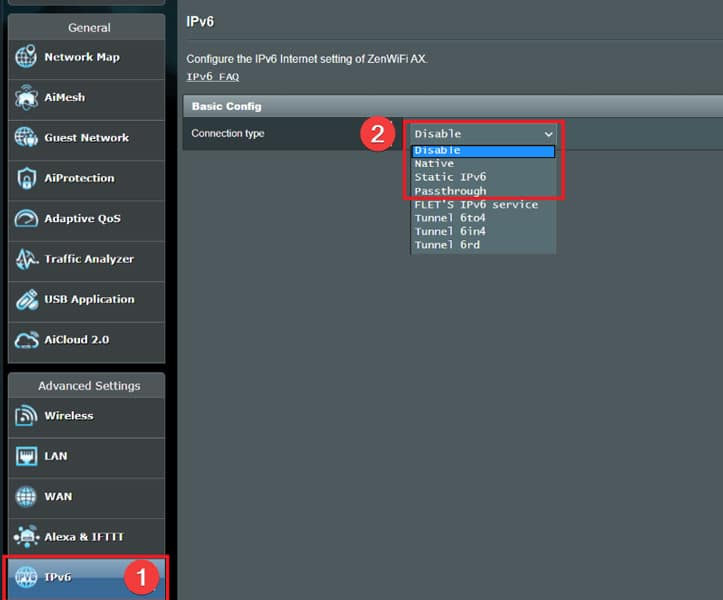
ASUS: Go to the router’s admin page, select Advanced Settings > IPv6, then choose Native.
TP-Link: Access the login page, choose IPv6 Support, enable it, and select your ISP’s preferred configuration type.
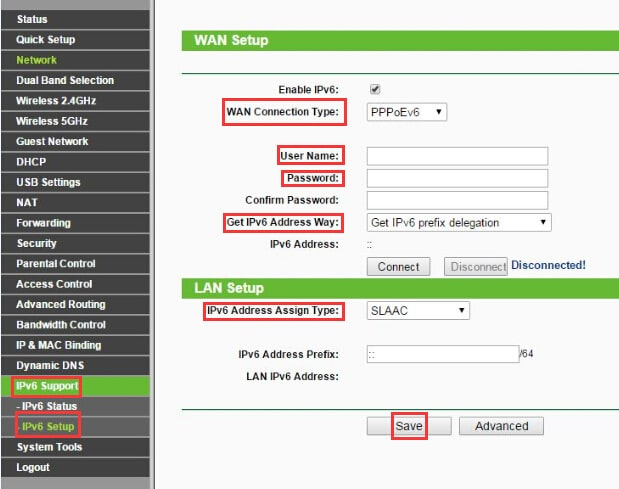
Remember to save changes and reboot the router after any adjustments.
4. Enabling IPv6 on Xbox
To enable IPv6 on your Xbox, the approach differs between the Xbox Series X and Xbox One due to their varying capabilities in handling network protocols.
Xbox Series X
- Open Settings on your Xbox.
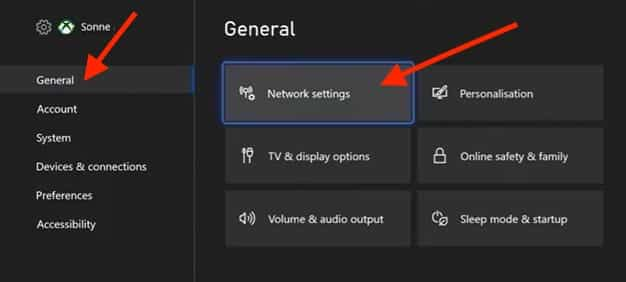
- Navigate to General > Network Settings.
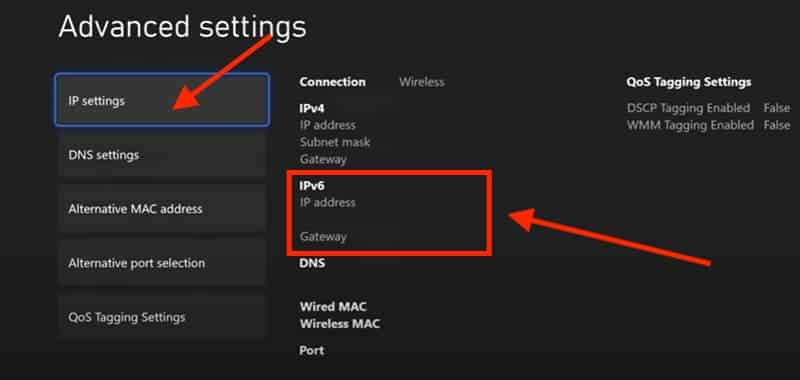
- Go to Advanced Settings.
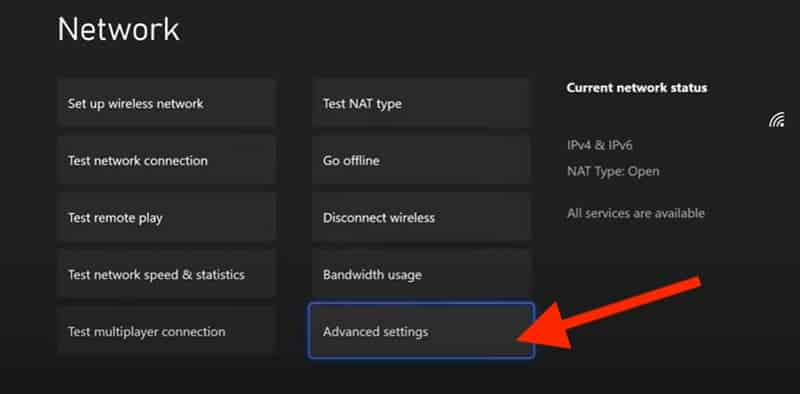
- Under IP settings, switch from Automatic to Manual if needed and ensure IPv6 is selected.
Xbox One
- Verify ISP support: Confirm that your Internet Service Provider (ISP) supports IPv6.
- Check router compatibility: Ensure that your router is compatible with IPv6 and that IPv6 is enabled.
- Automatic IPv6 usage: If IPv6 is available, Xbox One will automatically utilize an IPv6 connection.
5. Apply IPv6 DNS
DNS (Domain Name System) translates domain names into IP addresses. For IPv6, it’s important to use DNS servers that support the protocol. Common IPv6 DNS servers include:
- Google DNS:
2001:4860:4860::8888and2001:4860:4860::8844 - OpenDNS:
2620:119:35::35and2620:119:53::53
Setting these in your router can improve browsing speed and reliability.
In your router settings, look for DNS Server Settings under IPv6 configuration. Input the preferred and alternate IPv6 DNS addresses and save your changes.
Verifying IPv6 Connectivity
Once you have configured your Xbox and router for IPv6, it’s crucial to test the connectivity. This can be done through several methods:
1. Xbox Network Test
Use the built-in network testing feature on your Xbox:
- Press the Xbox button on your controller to open the guide.
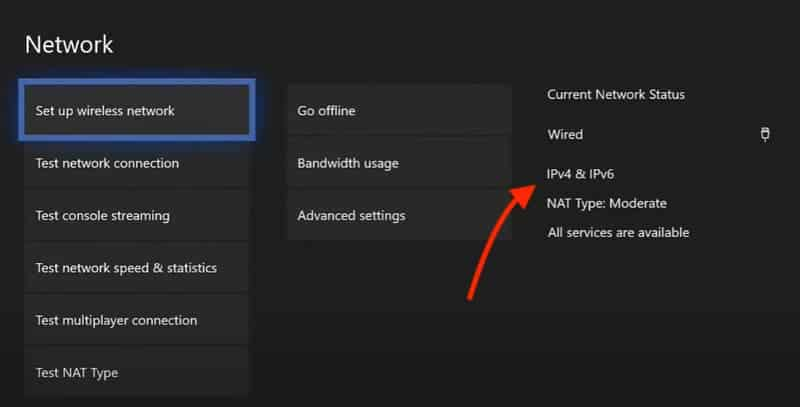
- Select Profile & system > Settings > General > Network settings.
- If your console has IPv6 connectivity, your Current Network Status will show IPv4 & IPv6.
2. Online IPv6 Test Websites
You can use the Xbox’s web browser to visit websites like Test-IPv6.com to confirm if your console is successfully using an IPv6 connection.
3. Router Status Page
Check your router’s status page via its web interface. Most routers show whether connected devices are using IPv6.
If IPv6 is not showing, your ISP may not support it, or your router configuration may need adjustment. Revisit previous steps or refer to troubleshooting tips below.
Common Issues and Solutions
1. Xbox IPv6 Not Detected
If IPv6 is not detected, ensure your ISP supports it and that IPv6 is enabled on your router. Restarting your Xbox and router can also help refresh the network settings.
2. Xbox Intermittent Connectivity
If you experience intermittent IPv6 connectivity, it may be due to signal strength. Try moving your Xbox closer to the router or using a wired connection.
3. Issues with Enabling IPv6 Feature
If your router and ISP support IPv6 but you can’t enable it:
- Restart your Xbox and router.
- Update firmware for both devices.
- Manually configure IP settings.
- Ensure you’re using IPv6-compatible DNS servers.
4. Contact Customer Support
If the issue persists:
- Document your steps.
- Report specific error messages.
- Provide details about your Xbox model and router.
Maximizing Gaming Performance
1. Network Related Configurations
- QoS Settings: Prioritize your Xbox in router QoS settings.
- Wired Connection: Prefer Ethernet over Wi-Fi.
- Avoid Network Congestion: Minimize other devices using bandwidth during gaming.
2. Xbox Performance Settings
- Keep your Xbox updated.
- Close unused background apps.
- Monitor network performance regularly in Xbox settings.
Enhance Your Xbox Gaming Experience with Scrapeless Proxies
Want to enjoy the full potential of IPv6 on your Xbox?
Scrapeless Proxies provides reliable, high-speed IPv6 proxy networks that are fine-tuned for gaming and low-latency performance.
With optimized routing, zero NAT restrictions, and global IPv6 infrastructure, you’ll experience:
- ⚡ Reduced lag and packet loss for smoother gameplay
- 🌍 Direct IPv6 routing for faster connections across regions
- 🔒 Enhanced privacy and DDoS protection
- 🎮 Seamless compatibility with Xbox, PlayStation, and PC platforms
Upgrade your gaming setup today with Scrapeless Proxies — the ideal solution for gamers who demand both speed and stability.
Embracing IPv6 might seem technical, but with Scrapeless Proxies, it’s simple, fast, and future-ready.
Take your Xbox gaming to the next level — with better connections, lower ping, and superior network reliability.
How to Use Scrapeless Proxies
Click Sign Up and log in to access the Scrapeless Dashboard.
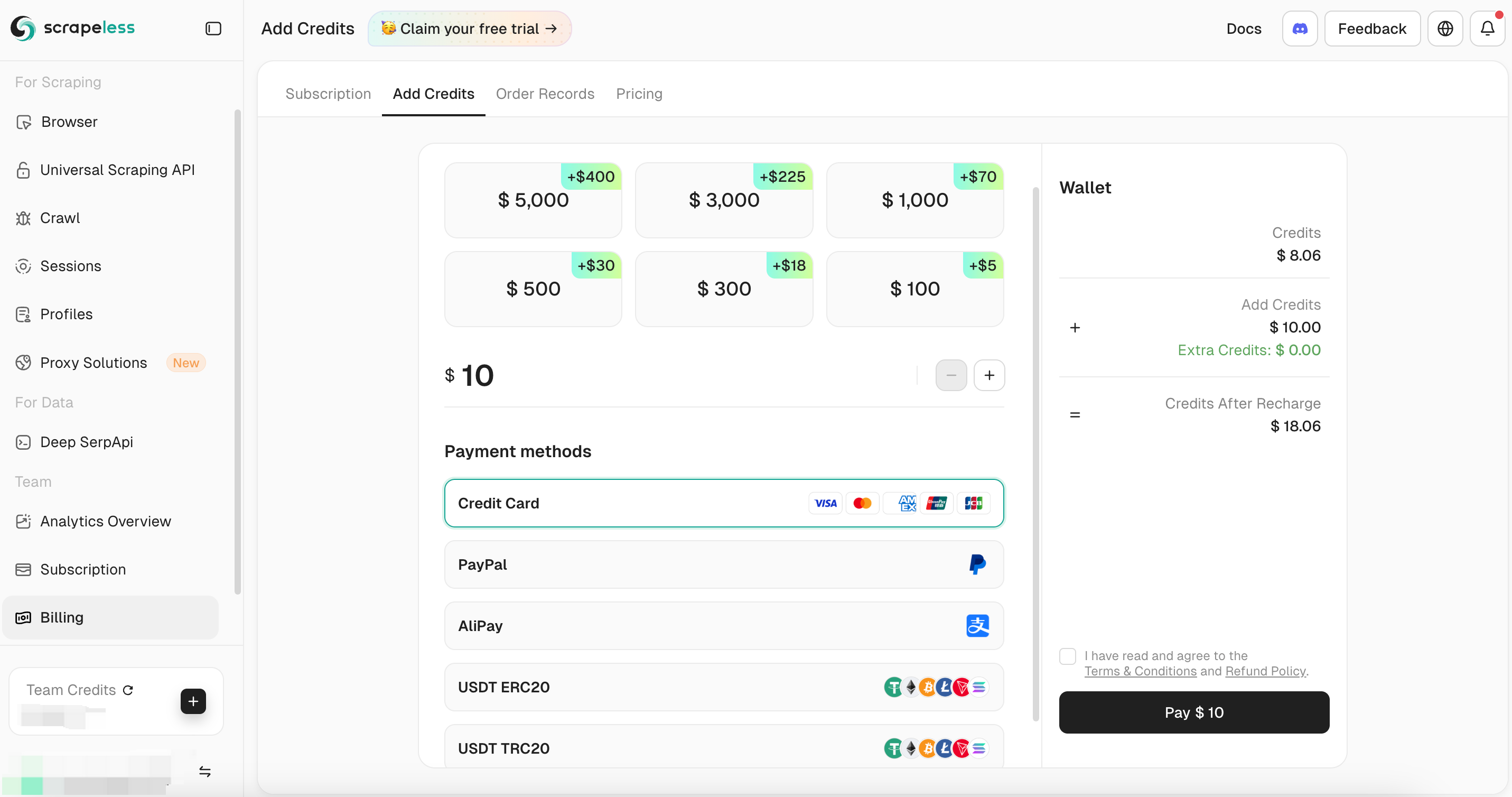
Top Up Wallet
Create a Channel
-
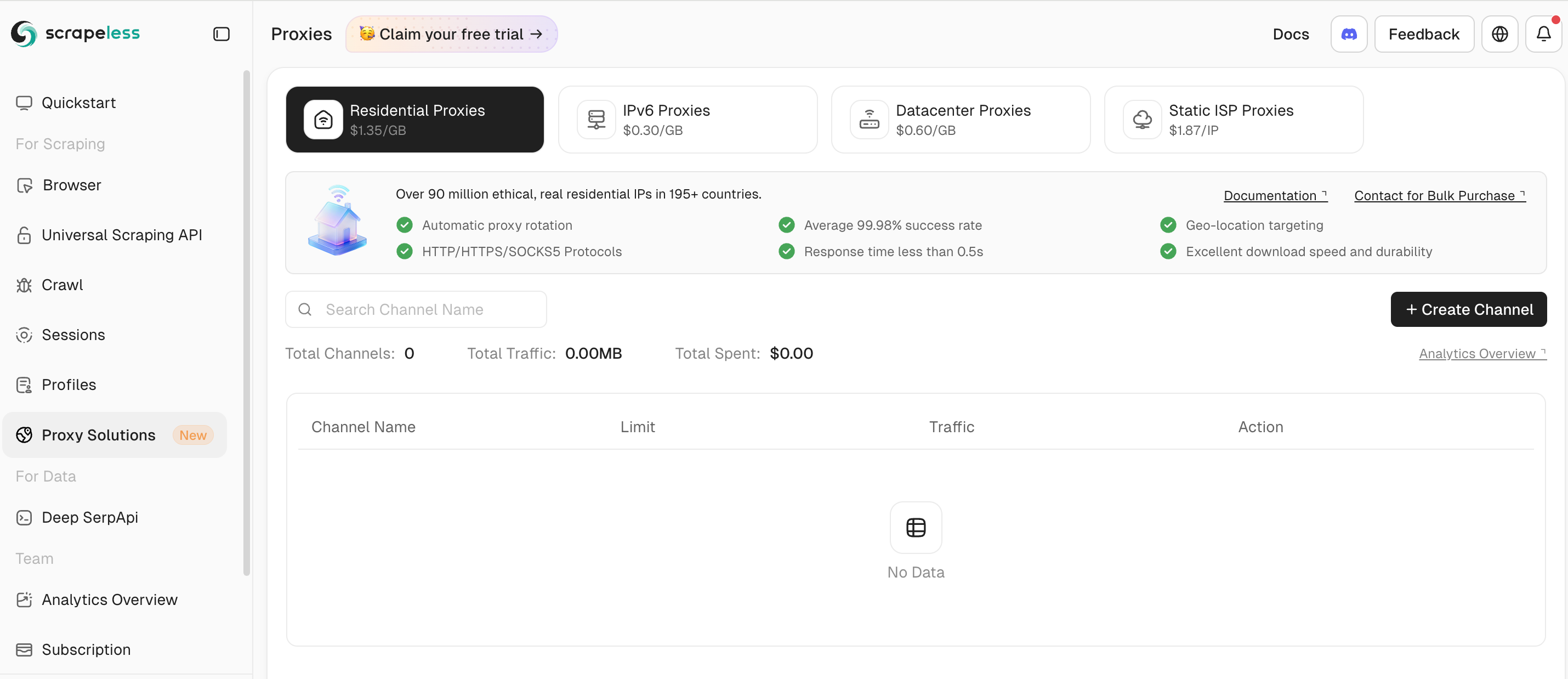
In the left-hand panel, select Proxy Solutions, then choose IPv6 Proxy.
-
Click the Create Channel button to open the proxy creation page.
-
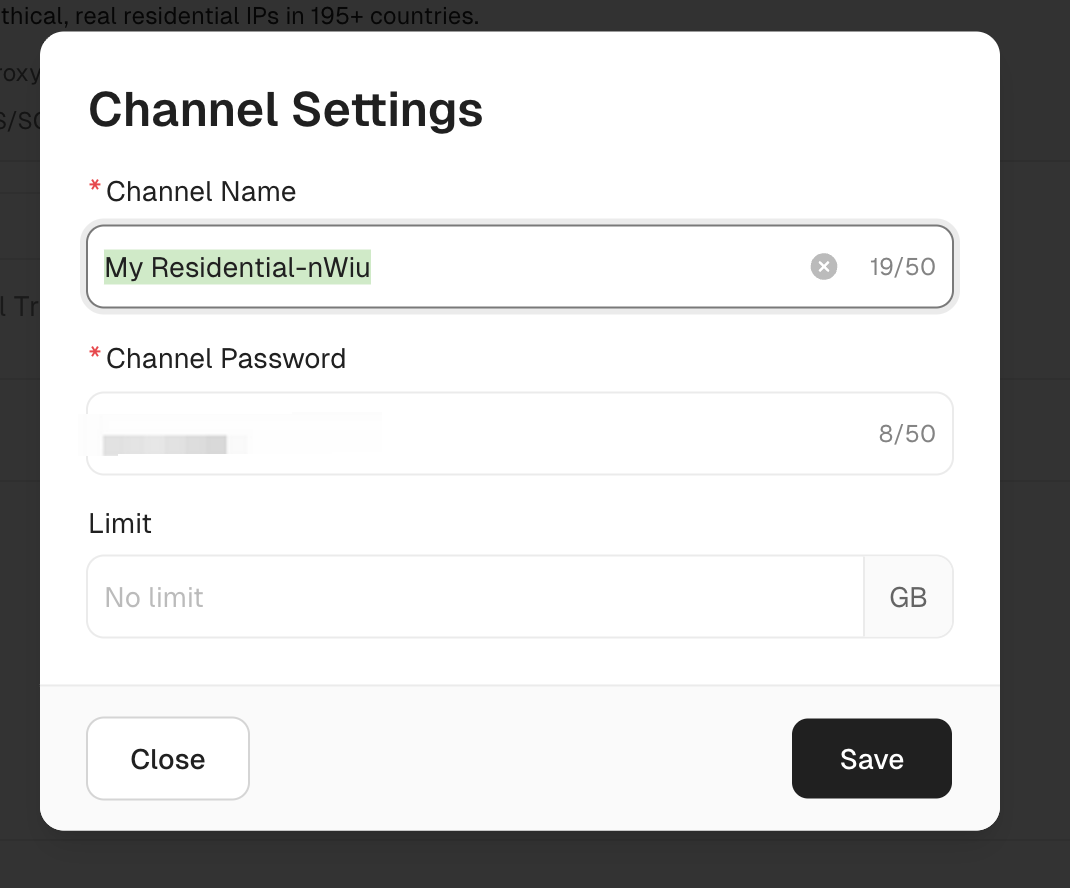
Set your password and limit, then click Save to complete the setup.
Use the Proxy
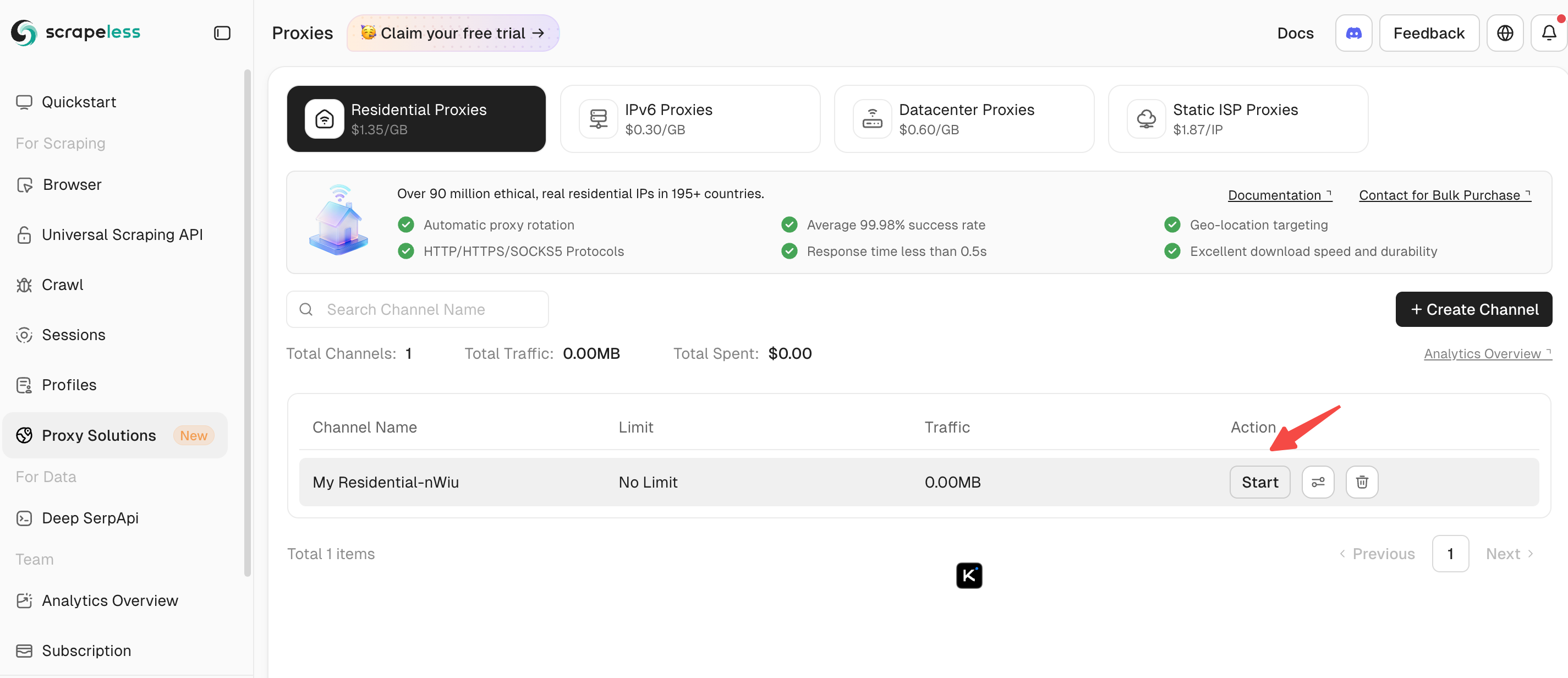
- In the Residential Proxy channel list, select a proxy channel and click Start.
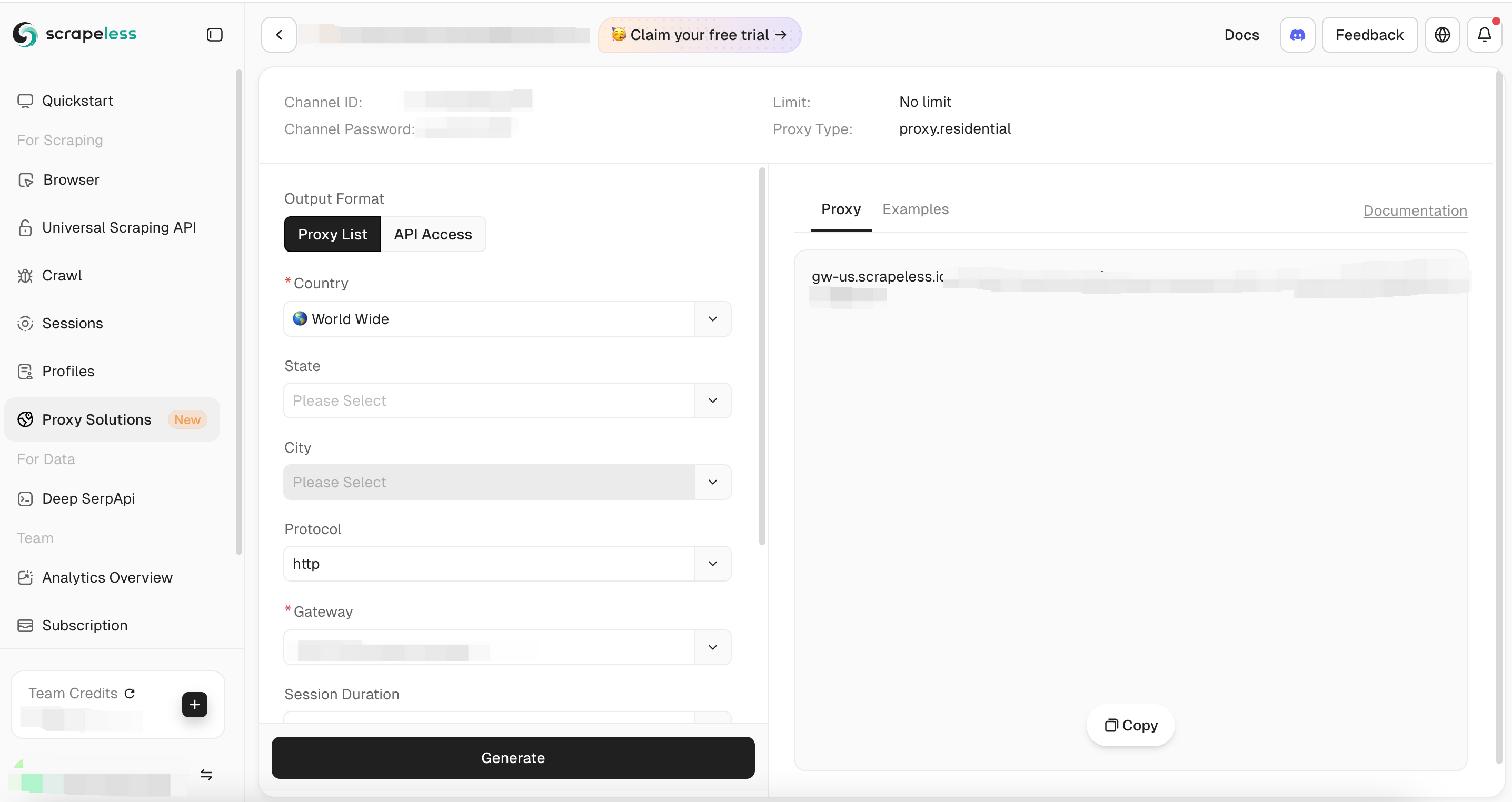
- Click the Generate button to create a proxy or view an example.
.
Conclusion
Adopting IPv6 is more than just a technical evolution; it’s a necessary step toward future-proofing our increasingly interconnected world. For gaming — especially Xbox users — IPv6 offers a faster, more stable, and more secure online experience.
As multiplayer games, cloud gaming, and high-bandwidth streaming continue to evolve, IPv6’s efficiency and scalability become indispensable.
At Scrapeless, we only access publicly available data while strictly complying with applicable laws, regulations, and website privacy policies. The content in this blog is for demonstration purposes only and does not involve any illegal or infringing activities. We make no guarantees and disclaim all liability for the use of information from this blog or third-party links. Before engaging in any scraping activities, consult your legal advisor and review the target website's terms of service or obtain the necessary permissions.