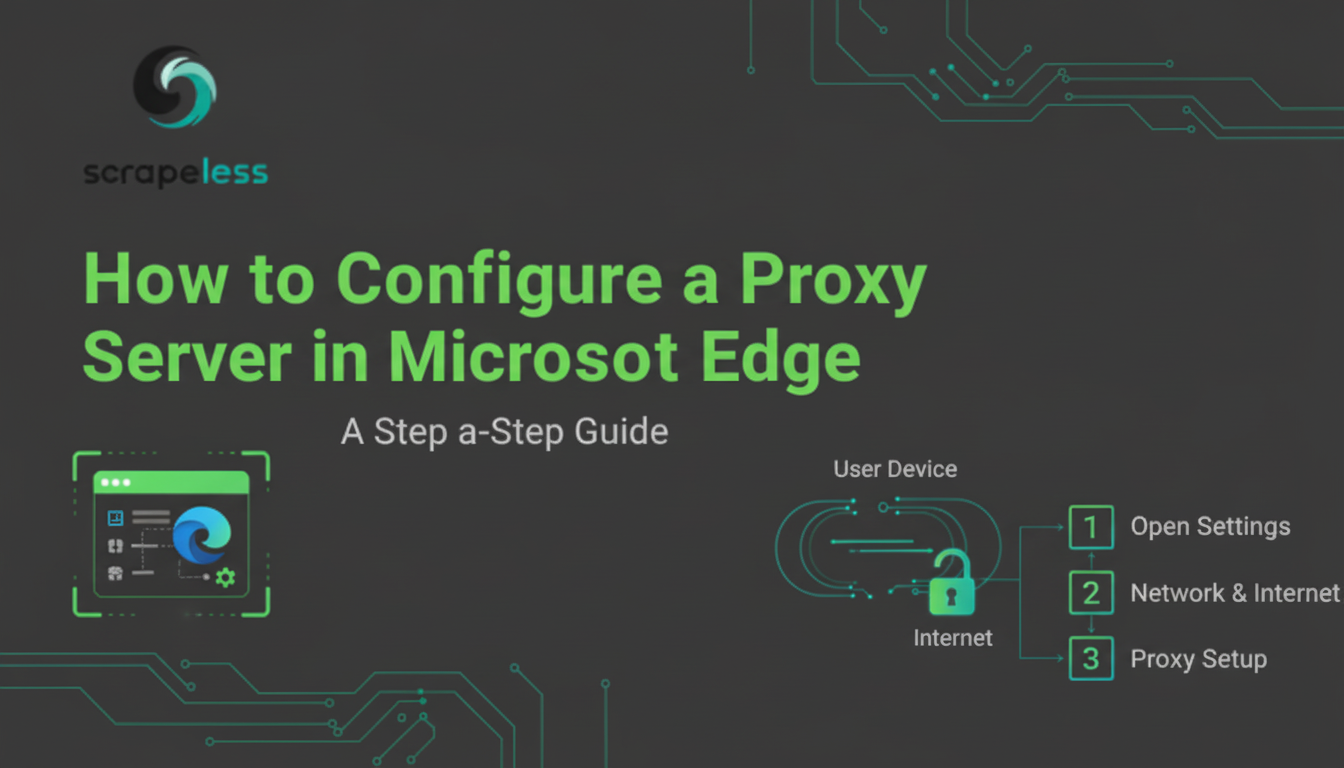
How to Configure a Proxy Server in Microsoft Edge: A Step-by-Step Guide

Expert in Web Scraping Technologies
Boost your automation and scraping with Scrapeless Proxies — fast, reliable, and affordable.
Key Takeaways
- Microsoft Edge uses the system-level proxy settings configured in Windows.
- The setup process involves navigating through Edge's settings to the Windows Proxy Settings panel.
- You can choose between Automatic Setup (using a PAC file) or Manual Setup (entering IP and Port).
- Using a proxy enhances privacy, allows you to bypass geo-restrictions, and is essential for web scraping and automated data collection.
- Troubleshooting often involves verifying the proxy address/port and checking for interference from firewalls or antivirus software.
Did you know that configuring a proxy server in Microsoft Edge can significantly enhance your browsing experience? Whether your goal is to improve online privacy, access geo-restricted content, or optimize your browser for large-scale e-commerce scraping, a proxy is a powerful tool.
Since Microsoft Edge is built on the Chromium engine, it relies on the underlying Windows operating system for its network and proxy configurations. This guide will walk you through the quick and simple methods to set up a proxy in Microsoft Edge, explain the benefits, and provide essential troubleshooting tips.
1. How to Set Up Proxies in Microsoft Edge
Setting a proxy for Microsoft Edge is straightforward, as the browser redirects you to the Windows system settings. The following steps apply to both Windows 10 and Windows 11 users:
Step 1: Access Edge Settings
- Launch Microsoft Edge.
- Click on the menu icon (three horizontal dots) in the top-right corner of the window.
- Select Settings.
Step 2: Navigate to System Proxy Settings
- In the Settings menu, select System and performance (or just System in some versions).
- Under the "System" section, find and click Open your computer's proxy settings. This action will open the dedicated Proxy panel within the Windows Settings application.
Step 3: Configure Your Proxy Manually
In the Windows Proxy settings window, you will find two main options: Automatic proxy setup and Manual proxy setup. For most proxy services, including those from Scrapeless, you will use the manual option.
- Scroll down to the Manual proxy setup section.
- Toggle the Use a proxy server switch to On.
- Fill in the required details:
- Address: Enter the proxy server's IP address or hostname.
- Port: Enter the corresponding port number.
- (Optional) You can add addresses that should bypass the proxy (e.g., local intranet sites) in the "Don't use the proxy server for local (intranet) addresses" box.
- Click Save.
Step 4: Authentication and Verification
- If your proxy requires a username and password (which is standard for secure, private proxies), a prompt will appear the first time you try to access a website. Enter your credentials to authenticate.
- To ensure everything is working, visit a website like "What is my IP address?" to confirm your IP has changed.
For more detailed information on how Microsoft Edge handles proxy configurations, you can refer to the official Microsoft Edge Browser Policy Documentation Microsoft Learn.
2. Benefits of Using a Proxy Server with Edge
Integrating a proxy server with your Microsoft Edge browser offers several significant advantages, particularly for users engaged in data-intensive tasks or those prioritizing online security.
Enhanced Privacy and Anonymity
A proxy server acts as an intermediary, masking your original IP address. This makes it significantly harder for websites and third parties to track your online activity, enhancing your privacy. For tasks like scraping search results, this anonymity is crucial for maintaining a low profile and avoiding IP bans.
Bypassing Geo-Restrictions
By routing your connection through a server in a different location, a proxy allows you to access content that is restricted based on your geographical location. This is essential for market research, content verification, or simply accessing geo-restricted data.
Optimizing for Automation and Scraping
For users performing automated data collection using Python or other tools, a high-quality proxy is indispensable. It allows you to distribute your requests across multiple IP addresses, preventing rate-limiting and ensuring the success of your operations.
3. Troubleshooting Common Proxy Issues in Microsoft Edge
While the setup is generally smooth, you may occasionally encounter issues. Here are solutions to the most common problems:
| Issue | Potential Cause | Solution |
|---|---|---|
| Cannot connect to websites | Incorrect proxy details or proxy server is down. | Double-check the IP address and port in the Windows Proxy settings. Contact your proxy provider if the details are correct. |
| Slow browsing speed | Proxy server is overloaded or geographically distant. | Try a different proxy server, ideally one closer to your location. Consider using a specialized scraping browser Scrapeless that can manage proxy rotation automatically. |
| Connection blocked | Firewall/Antivirus interference or proxy IP is blacklisted. | Temporarily disable your firewall or antivirus to check for interference. If the IP is blacklisted, switch to a new IP from your provider. |
| Authentication failure | Incorrect credentials. | Ensure you are entering the correct username and password for your proxy service. |
For persistent issues, consulting the official Microsoft Support documentation Microsoft Support for Windows proxy settings is always recommended.
4. The Bottom Line: Choosing a Reliable Proxy Provider
Setting up a proxy in Microsoft Edge is a simple yet powerful way to take control of your online presence. However, the performance and reliability of your connection depend entirely on the quality of your proxy provider.
For users who require fast, reliable, and high-anonymity proxies for demanding tasks like web scraping and automation, Scrapeless offers industry-leading solutions. Our proxies are designed to handle high-volume requests and complex targets, ensuring your operations run smoothly and efficiently.
Residential Proxies
With over 90 million real residential IPs across 195+ countries, Scrapeless Residential Proxies are ideal for scraping, market intelligence, price tracking, and more.
Key Features:
- Automatic proxy rotation
- 99.98% average success rate
- Precise geo-targeting (country/city)
- HTTP/HTTPS/SOCKS5 protocols
- <0.5s response time
- Excellent speed and stability
- Only $1.80/GB
IPv6 Proxies
High-speed, dedicated IPv6 proxies designed for heavy-duty scraping tasks.
Features:
- HTTP(S) & SOCKS5 support
- Automatic IPv6 proxy rotation
- High anonymity with dedicated IPs
- 50M+ premium IPv6 pool
- CCPA & GDPR compliant
- Pay-per-GB billing
Datacenter Proxies
High-performance datacenter IPs optimized for large-scale automation, bulk scraping, and massive concurrency.
Features:
- 99.99% uptime
- Extremely fast response time
- Stable long-duration sessions
- API access & easy integration
- High bandwidth, low latency
- Supports HTTP/HTTPS/SOCKS5
Static ISP Proxies
Ideal for eCommerce account operations (eBay, PayPal, Amazon), long-term identity consistency, and low block risk.
Features:
- Real residential IPs
- 99.99% uptime
- High acceptance rates & low ban risk
- Geo-location targeting
- HTTP/HTTPS/SOCKS5 protocols
Scrapeless Proxies provides global coverage, transparency, and highly stable performance, making it a stronger and more trustworthy choice than Oculus Proxies — especially for business-critical and professional data applications."
Frequently Asked Questions (FAQ)
Q1: Does Microsoft Edge have its own proxy settings?
A: No. Microsoft Edge, like other Chromium-based browsers, uses the system-level proxy settings configured in the Windows operating system. When you access the proxy settings through Edge, you are simply redirected to the relevant panel in the Windows Settings app.
Q2: Can I use a SOCKS5 proxy with Microsoft Edge?
A: Yes, you can. When you manually configure the proxy in the Windows settings, you can specify the SOCKS5 protocol if your proxy provider supports it. However, for most general web browsing and HTTP/HTTPS traffic, an HTTP proxy is typically used.
Q3: Is it better to use a proxy or a VPN for Edge?
A: It depends on your needs. A VPN encrypts all your traffic and is better for general security and privacy across your entire device. A proxy is application-specific (in this case, for Edge and other apps using system settings) and is often preferred for tasks like web scraping where you need fine-grained control over IP rotation and connection type.
Q4: What is a PAC file?
A: A PAC (Proxy Auto-Configuration) file is a script that tells the browser which proxy server to use for specific URLs. If you choose the "Automatic proxy setup" option in Windows settings, you will typically be asked to provide the address of a PAC file. This is useful for complex network environments.
Q5: Will setting a proxy in Edge affect other browsers like Chrome or Firefox?
A: Yes, because Microsoft Edge uses the Windows system-level proxy settings. Any proxy configured manually or automatically in the Windows settings will generally apply to all applications that rely on the system's network configuration, including other browsers like Chrome and Internet Explorer. Firefox, however, often has its own independent proxy settings that can override the system default.
At Scrapeless, we only access publicly available data while strictly complying with applicable laws, regulations, and website privacy policies. The content in this blog is for demonstration purposes only and does not involve any illegal or infringing activities. We make no guarantees and disclaim all liability for the use of information from this blog or third-party links. Before engaging in any scraping activities, consult your legal advisor and review the target website's terms of service or obtain the necessary permissions.